
Updating Nutridata Export File
See also setting up a Nutridata Label with Label Direct [Link to follow]
All the data content for your labels is managed in Nutridata, so when you make changes to the data or add new products, you do so in Nutridata first. Then you need to export the data to your Label Direct or EnLabel Labelling system.
Examples of changes you may make:
- Adding new products
- Changing recipes
- Changing or adding ingredients (affecting allergens)
- Changing prices
- Changing categorisation
- Changing barcodes
- Changing Use By or Best Before specification or day offset
Process Overview
To make changes, use the Nutridata training videos to learn how to make changes.
PLEASE NOTE: Close all instances of Label Direct or EnLabel to complete this process.
Exporting Data
Open Nutridata and log in with your user details, then follow these instructions:
- Select the Export tab at the top of the Nutridata screen
- Select all items by clicking the checkbox to the left of “ID”
- Click the Export Data button

You will be presented with the download dialogue.
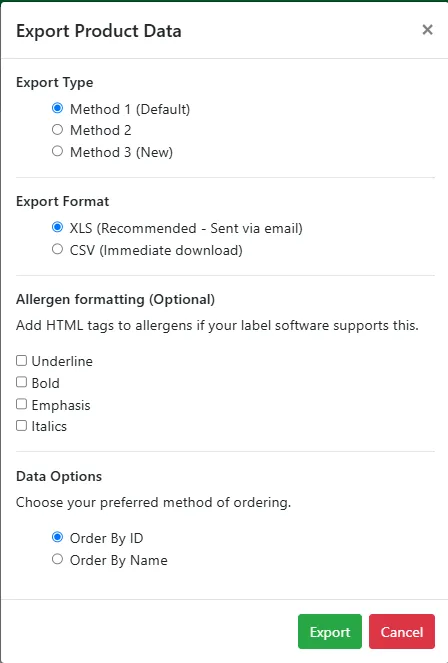
Do not change any settings – HTML tagging only works with EnLabel. Click Export
The dialogue will show a “working” icon whilst the system compiles your data and sends it as an email. There is an option to change the receiving email – but make sure you change it back to log into Nutridata again.

Check your Email
You should receive an email from no-reply@nutridata.co.uk – simply click to download (example image may vary from your own email system)
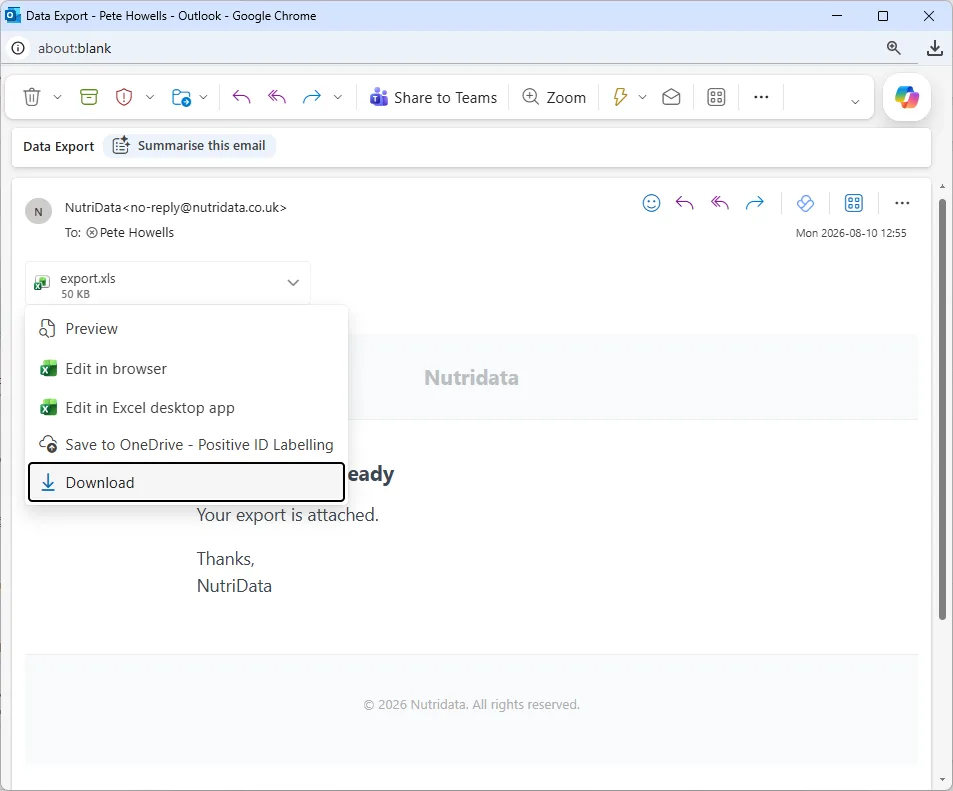
Copy and replace the export.xls file
- Open your downloads folder and locate the export.xls file
- Select the file (click it once)
- Right-click the same file and select cut from the context menu
- Browse to your “Labels” folder (If we set this up for you, it will normally be on your Desktop)
- If you have an earlier export.xls file, you can rename it now – WE STRONGLY ADVISE YOU TO DO THIS FOR REDUNDANCY
- Select the export.xls file in your Labels folder
- Right-click and select Rename from the drop-down list (or press the F2 key)
- Rename your file with an appropriate name – e.g. export old.xls
- NOTE: You may not be able to see the .xls file extension on your system
- Once complete, click any empty space in the window area
- Right-click and select “Paste”
- Your new export.xls file should now appear in the file list
Test Label Direct
Open Label Direct and test your labels.
Frequently Asked Questions
I replaced the file, but my labels have not updated – what went wrong?
You need to replace the correct export file. It is often the case that users create more than one version of the label and data file. To find out the name and location of the export file you need follow this diagnostic process.
- Open Label Direct
- Open your label
- Click “Database” on the Label Direct menu
- Click “Properties”
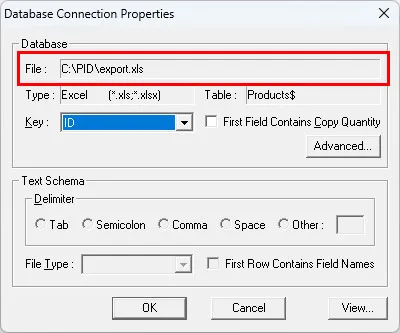
- The file location is indicated in the first dialogue:
You need to replace the file in that location to implement the changes in Nutridata into your label.
IMPORTANT: If the file linked to your labels is named something other than export.xls, you need to mirror that exactly. For example, if your ‘old’ data file is called “export-new.xls”, rename your new export file “export-new.xls”.
As a Positive ID Labelling customer, we can support you with this work. If you have any trouble replacing this data, give us a call on 01332 864895 and ask for Pete. Make sure you have Anydesk.com installed and running. You can download an AnyDesk Ninite instant installer here.
I replaced the file, but I am seeing an error when I open my label.
This could be because it has been a long time since you last updated the file. The format of the Nutridata export file changed in 2021. The old format had two identical ID columns in column A and B of the file. The first was headed with a hashtag (#), the second was headed with the heading “ID”.
NOTE: In some cases you may be mixing an “xls” and an “xlsx” filetype. Whilst Label Direct can work with either, the older “xls” format is far more reliable and works on virtually all Windows systems without the need for any further intervention.
Resolution: Duplicate the database structure
- Close the label BUT do not save any changes
- Close Label Direct
- Open the export.xls file in Microsoft Excel, Open Office, Libre Office or Google Sheet
- Select column A (headed “ID”)
- Select Cell “A1”
- Right-click on Cell “A1”
- Select “Insert Copied Cells” from the context menu
- Select Cell “A1”
- Type the hashtag #
- Save then Close the file and Excel
- Re-open Label Direct
- Re-open the label
As a Positive ID Labelling customer, we can support you with this work. If you have any trouble replacing this data, give us a call on 01332 864895 and ask for Pete. Make sure you have AnyDesk.com installed and running. You can download an AnyDesk Ninite instant installer here.
I replaced my export file, but my labels are not showing in the correct order
Nutridata exports your product reference number as a text string, not a number per se. This means that sometimes, data groups up with 10s, 100s, 1000s and 10000s together. Nutridata exports the data in numerical sequence despite this.
If you are competent with Excel (Open Office, Libre Office or Google Sheets), these ‘string’ numbers can be changed into genuine numbers with a simple editing command.
- Close your label and Label Direct
- Open your export.xls file
- Select column “A:A” by clicking on the letter “A”
- Right-click over the letter “A”
- Select “Insert” to insert a new column
- Select Cell “A2”
- Type “=VALUE(B2)” and press CTRL+ENTER (This keeps cell A2 selected)
- Press CTRL+C (This copies the contents of the cell – the formula we just wrote).
- Select all the empty cells below to the bottom of the list
- Press CTRL+V (This pastes the formula to all the cells)
- Select all the cells with the formula in them.
- Press CTRL+C to copy the cells
- Select cell “B2”
- Right-click and select “Paste Special – Paste Values”
- Select Column A as before
- Right-click and select Delete
- Save and Close
As a Positive ID Labelling customer, we can support you with this work. If you have any trouble replacing this data, give us a call on 01332 864895 and ask for Pete. Make sure you have Anydesk.com installed and running. You can download an AnyDesk Ninite instant installer here.
Still Stuck?
As a Positive ID Labelling customer, we can support you with this work. If you have any trouble replacing this data, give us a call on 01332 864895 and ask for Pete. Make sure you have Anydesk.com installed and running. You can download an AnyDesk Ninite instant installer here.