
Label Direct License Transfer
Read this full LabelDirect Transfer License guide and the FAQ section below before starting. Once the old computer is delicensed, you cannot interrogate the software for answers.
Also relevant: To upgrade from Label Direct version 4.15 to Label Direct version 6, read this page.
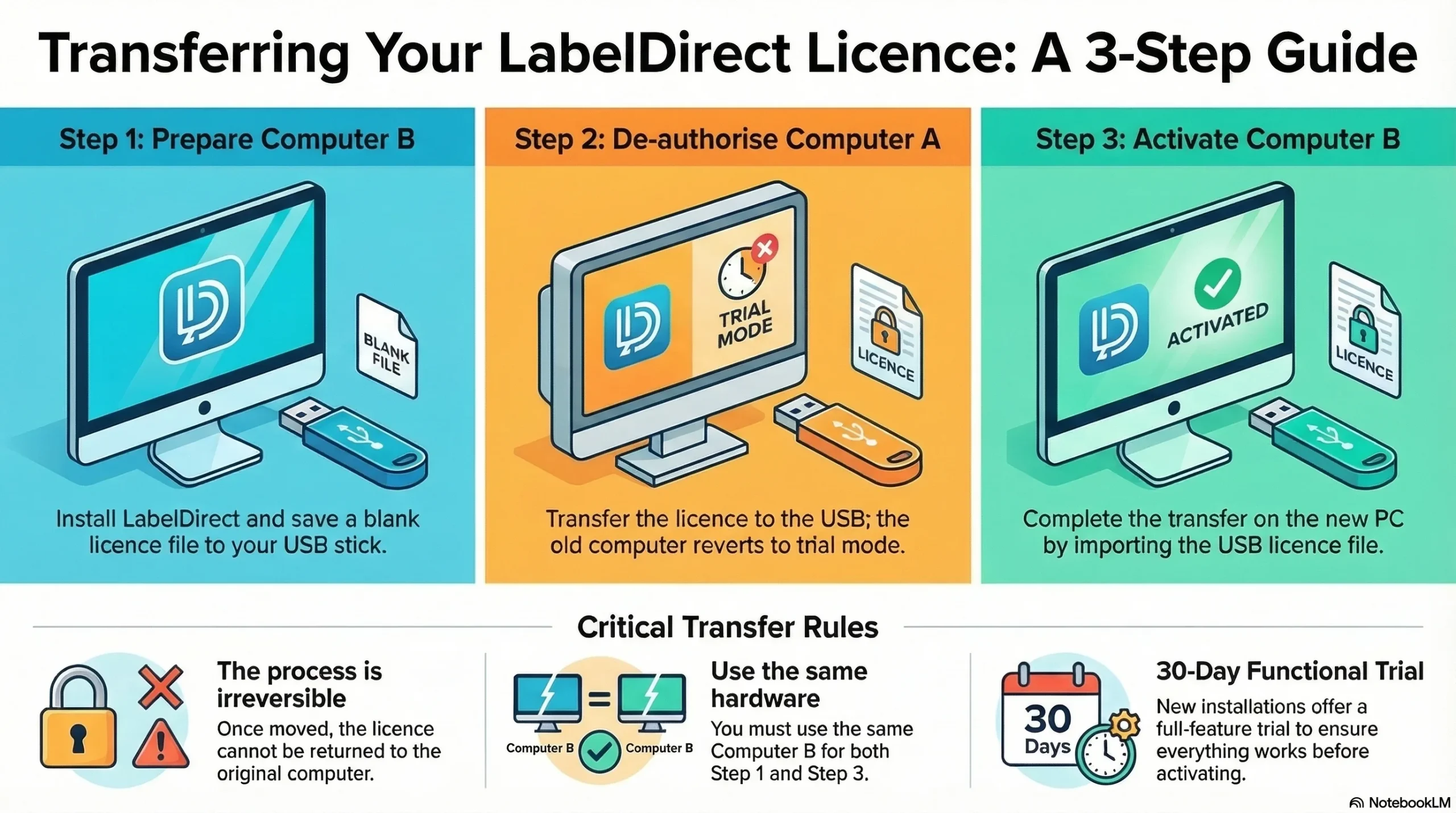
Transferring a LabelDirect licence from one computer to another is a three-step process requiring the use of removable media (typically a USB memory stick). To transfer your LabelDirect licence from an existing installation (Computer A) to a new installation (Computer B), proceed as follows:
NOTE: You can only transfer the same software version between computers. You cannot transfer version 4.15 to version 6 on the new computer. If you want to upgrade, you must use the upgrade pathway on Computer A before starting the transfer.
To identify the software version:
- On Computer A, the one being deactivated
- Open LabelDirect for TSC
- Click Help > About LabelDirect
- A dialogue will appear showing the LabelDirect version
STEP 1 (Computer B):
On the computer that will receive the transferred licence (Computer B), install a new copy of LabelDirect – you may need to install the printer drivers too, using the printer driver wizard below.
- Download LabelDirect – LabelDirect for TSC version 6 or LabelDirect for TSC version 4.15 and double-click to run the installation – follow the instructions and make setting selections to fit your needs
- Download Printer Drivers – Seagull Printer Drivers and extract, then run the Printer Driver Wizard and follow the instructions
- The trial will run for 30 days as a fully-functional trial installation, and you can use this time to configure the new installation and ensure that it is working to your satisfaction.
- When you are ready to transfer the licence, insert the USB stick into computer B and, from the LabelDirect menu,
- Select Licence Licence Transfer 1. Start Transfer.
- A ‘Save Licence File’ dialogue box will be displayed that enables you to store a blank licence file (LabelDirect.lic) on the removable media.
- When the ‘Licence transfer successful‘ message appears, take the USB stick to computer A.
STEP 2 (Computer A):
- On the computer from which the licence will be transferred (Computer A) insert the USB stick containing the blank licence file created in step one.
- From the LabelDirect menu
- Select Licence Licence Transfer 2. Transfer This Licence
- A message will then appear asking you to confirm that you wish to transfer the LabelDirect licence away from this computer.
- In the following ‘Open Licence File’ dialogue box, navigate to and select the blank licence file on the USB memory stick.
- LabelDirect will then transfer its licence to the licence file on the USB stick, de-authorising itself and reverting to a 30-day trial in the process.
- When the ‘Licence transfer successful‘ message appears, take the USB stick back to computer B.
- NOTE: This process is not reversible, and the licence cannot be returned to this computer.
- If you wish to subsequently re-license computer A, you will need to purchase a new licence.
STEP 3 (Computer B):
- Insert the USB memory stick in the computer that will receive the transferred licence (Computer B).
- Note that this must be the same computer that created the blank licence file in step 1.
- From the LabelDirect menu
- Select Licence Licence Transfer 3. Complete Transfer.
- In the following ‘Import Licence File’ dialog box navigate to and select the licence file on the USB memory stick.
- LabelDirect will then activate itself using the specified licence file.
- When the ‘Licence transfer successful‘ message appears the transfer process is complete.
- Note: that the licence file on the USB stick cannot subsequently be used to licence any other computer.
Step 4: Transferring Labels (Computer A):
- Your labels will normally be stored in a specific folder on your machine
- If we set this up for you, it will normally be called “Labels” and reside on your computer desktop
- Copy the folder with all the files to the USB drive
- On the new computer, paste the files in the same suitable locations (e.g. Desktop)
- Open Label Direct and then click File Open and browse to your label files
- When you open the file, it may wanr that it cannot find a file (e.g. the database or label image background)
- Browse to the appropriate location for the missing file
- Save your label to enshrine the change for future use.
Frequently Asked Questions about Label Direct License Transfers
I cannot find my labels – where are they?
The most common problem is that the label files were saved in the Label Direct installation folder – or at least you thought they were!
To protect the system, Windows saves your labels in a “Virtual Store” which looks like the same place – you can browse to this location:
- Open Windows Explorer (Winkey + E)
- Browse to the C drive folder
- Open the “Users” folder
- Open your username on the computer (Name of your account on the machine e.g. “John”, “Paul Smith”)
- Open the “App Data” folder (See note below)
- Open the “Local” folder
- Open the “Virtual Store” folder
- Open the “Program Files (x86)” folder
- Open the “Image Computer Systems” folder
- Open the “LabelDirect” folder
- Open the “TSC” folder (or whatever printer manufacturer your system uses.
- You are in the correct folder.
- NOTE: You need to copy the “[filename].lab” file and the associated “[filename].cmp” file and transfer them to your new system.
If you cannot see the AppData folder, this is because your Windows File Explorer is set to not show hidden files.
How can I show hidden Files on my system?
Ribbon/Menu method (Windows 10/11):
- Open Explorer
- Click the View tab (Win 10) or the View menu → Show (Win 11)
- Tick Hidden items
Folder Options method (all versions):
- Open Explorer
- Press Alt to show the menu bar → Tools → Folder Options, or search for “Folder Options” in Start
- Go to the View tab
- Under Hidden files and folders, select Show hidden files, folders and drives
- Optionally, uncheck Hide protected operating system files if you need to see those too
- Click OK
Quickest method — keyboard shortcut:
- Open Explorer and press Alt + V, then H (toggles hidden items on Win 10)
How do I find the database connected to my Label Direct labels?
If your label database is in a different folder, it can be difficult to find.
- On your old computer (Computer B), open the old instance of Label Direct
- Open your label
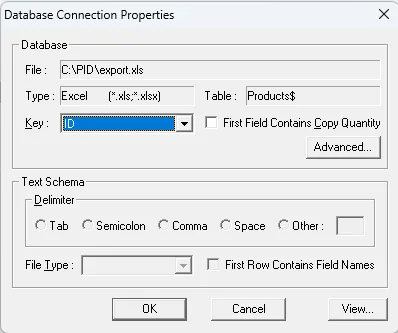
- Click Database Properties
- The window will show you the filepath to your database for that label, e.g. below “C:\PID\export.xls”
Positive ID Labelling is proud to provide free ongoing technical support for their label-buying customers. For technical support, please call 01332 864895 or email support@pid-labelling.co.uk