
Food Labelling Database Tips & Tricks
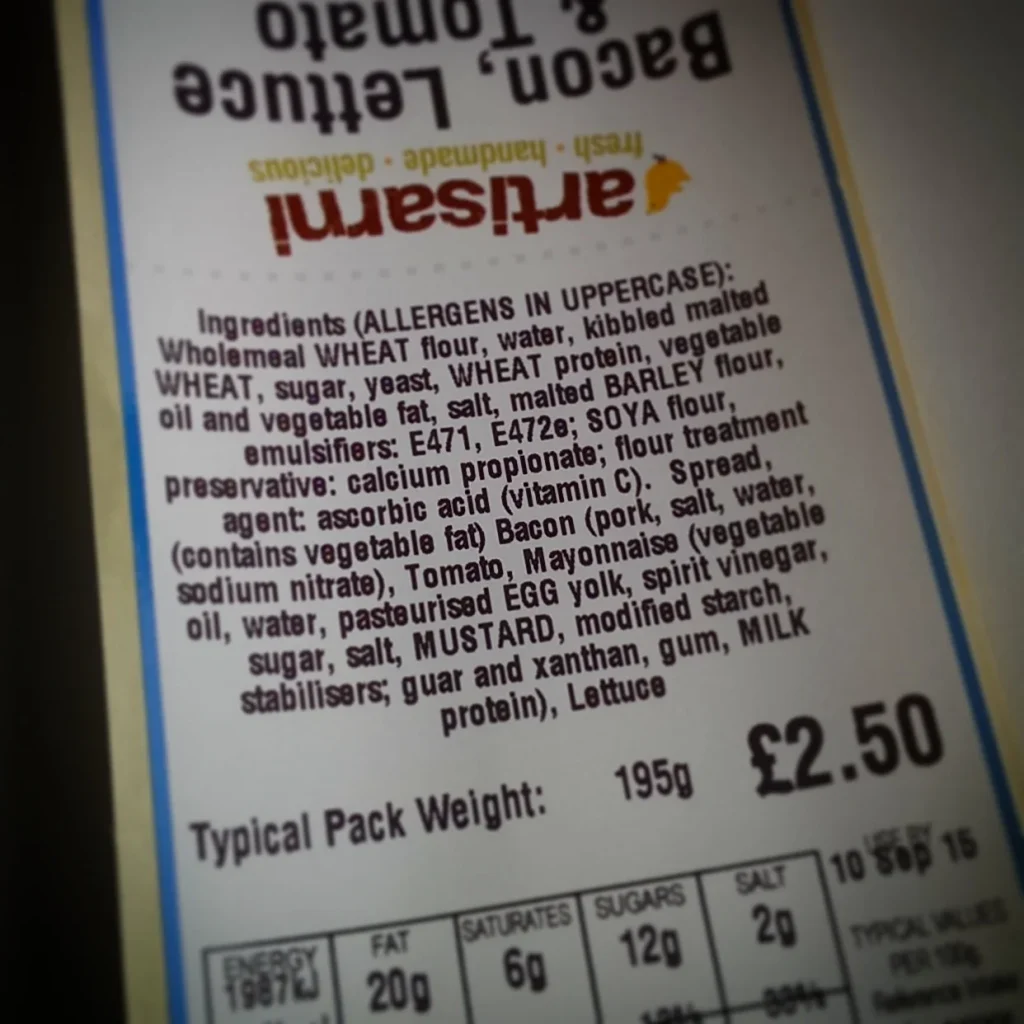
Getting your food labelling right is important to help customers read and understand the product they are buying. This guide is aimed at food labelling businesses, but many of the tips are helpful for other non-food labelling customers.
Food businesses and catering staff are great at making food, following food hygiene rules, and creating fantastic food. Understandably, computer skills are not required to be great at making delicious food. This guide aims to help staff and businesses deliver high-quality labelling for their products.
This guide will show you how to use the Find/Replace function to manipulate your xls database files in
- Microsoft Excel (paid Microsoft product)
- OpenOffice (free alternative to Excel),
- LibreOffice (free alternative to Excel) or
- Google Sheets (Requires a Google Account (GMail Account).
One common issue with ingredient listing is text spacing consistency. It is quite common to have irregular syntax in the ingredient listing. For example, not having a space after a comma or a bracket closure. This affects the ingredient listing by forcing the label printing software to figure out how to present the information, which it often fails to do well.
- Example: Poor spacing consistency: Note the lack of spaces after commas in this text:
- White Roll (36%)[WHEAT (GLUTEN)Flour [WHEAT (GLUTEN)Flour Calcium Carbonate,Iron,Niacin,Thiamin],Water,Yeast,Salt,Dextrose,Palm Oil, Flour Treatment Agent (Ascorbic Acid)(Folic Acid).]
- Example: Consistent Spacing:
- White Roll (36%) [WHEAT (GLUTEN) Flour [WHEAT (GLUTEN) Flour Calcium Carbonate, Iron, Niacin, Thiamin], Water, Yeast, Salt, Dextrose, Palm Oil, Flour Treatment Agent (Ascorbic Acid), (Folic Acid).]
Find & Replace Function
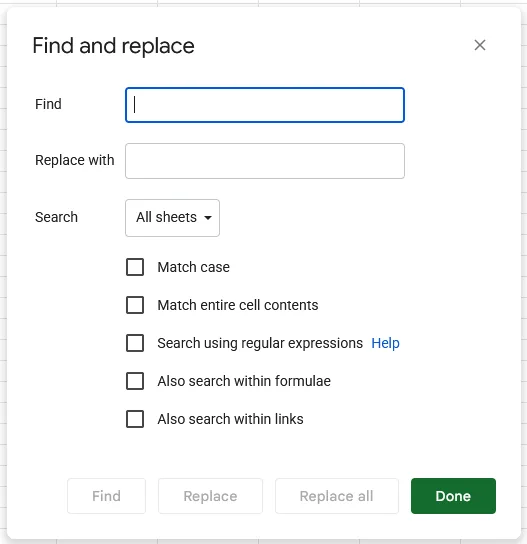
The 4 software suggestions here allow you to use the Find and Replace function. In an open workbook, you can invoke the dialogue using Ctrl+H (or Open Office Ctrl + F)
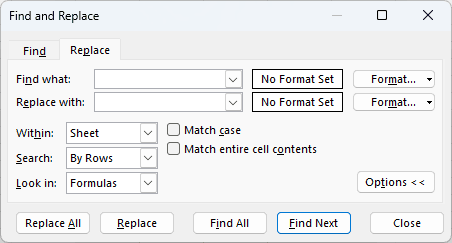
Microsoft Excel – Press Ctrl+H
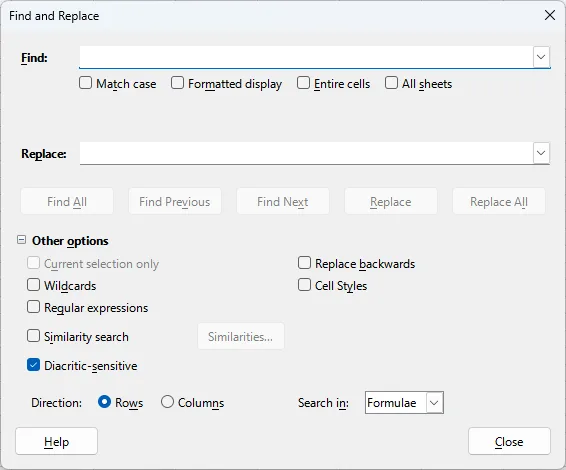
Libre Office Calc – Press Ctrl+H
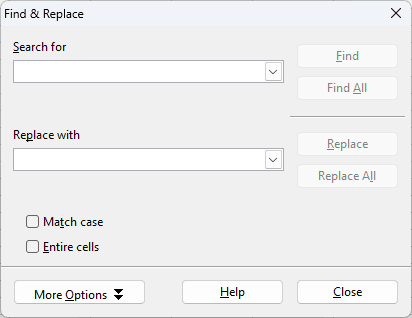
Open Office Calc – Ctrl+F
Google Sheets – Ctrl+H
Introducing Consistent Spaces:
The find and replace function allows you to edit large amounts of text in very little time. In this example, we want to add a space after every comma.
- Open your export.xls or products.xls database (whatever your input database is called – how to identify your database).
- Select the column with the data that you want to edit – normally the ingredients listing column
- This prevents editing sections of data that may not benefit from this work.
- To select the column, click on the letter for that column.
- You should see a confirmation dialogue that summarises what the action achieved.
Step One:
- Open the find and replace function using the key combination for your software listed above
- In the find input box, add a single comma – “,”
- In the replace input box, type a comma and a space – “, “
- Click “Replace All”
Step Two:
Any commas that already have a space after them will now have 2 spaces after the column, so we need to get rid of any of those. We do that by repeating the process but changing the find and replace parameters.
- Depending on your spreadsheet software, you may need to reinvoke the Find and Replace diaogue.
- In the Find input box, delete any incumbent variables and enter two spaces by pressing the space bar twice
- In the Replace input box, delete any incumbent variables and enter one spaces by pressing the space bar once
- Click “Replace All”
This will reduce any double spaces to single spaces, and you will have a space after every comma. This will help the software calculate better flow of the text on your labels. You may have to repeat this until the Find and Replace function reports no further replacements. e.g.
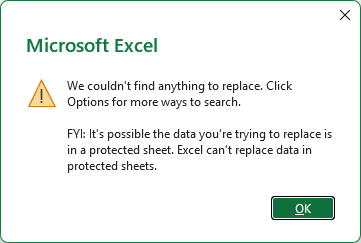
The comma-space insertion is the most common search and replace action to help with your labels. There are many others that can help. Where a space is introduced, you should always run a double-space-to-single-space reduction Find and Replace to remove any instances of double spacing. You can do this as a final process when doing this editing.
Non-Exhaustive List of Common Find and Replace Functions:
| Find input (in quotation marks) | Replace input (in quotation marks) | Impact |
|---|---|---|
| “And” | & | Replace any “and” or “And” with an ampersand “&”. This shortens the length of your ingredient text. |
| “( ” – Left bracket space | “(” – left bracket | Ensures text starts immediately after a left bracket |
| ” )” – space right bracket | “)” – right bracket | Ensures brackets load immediately after text finishes within the brackets |
| ” ,” – space comma | “,” – comma | Remove any isolated commas that have a space before them so commas appear directly after the text |
| “Bbq” | “BBQ” | Replace any uncapitalised abbreviations of BBQ. Consider repeating this process in your Title column. |
| “[ ” – left square bracket space | “[” – left square bracket | Ensures text starts immediately after a left square bracket |
| ” ]” – space right square bracket | “]” – right square bracket | Ensures square brackets load immediately after text finishes within the square brackets |
| “{ ” – left curly bracket space | “{” – left curly bracket | Ensures text starts immediately after a left curly bracket |
| ” }” – space right curly bracket | “}” – right curly bracket | Ensures square brackets load immediately after text finishes within the curly brackets |
| “Edta” | “EDTA” | Capitalise EDTA if it is in any of your ingredients |
Capitalising or Sentence Casing Titles
For your labels to look as professional as possible, it is often sensible to ensure your product titles are capitalised within the database, rather than using the features in Label Direct.
There are 2 functions in Excel, OpenOffice, LibreOffice, or Google Sheets that we can use for this work.
- PROPER – this function capitalises a word, e.g. “WORD” becomes “Word” or “word” becomes “Word”
- UPPER – this function forces all letters into uppercase, e.g. “word” becomes “WORD” or “Word” becomes “WORD”
- NOTE: When using the PROPER function, any instances of “BBQ” will become “Bbq”
- NOTE: These functions are not suitable to use on your ingredient listing as they will remove capitalisation for your allergens.
In this example, we will use Microsoft Excel, but the process is the same for any of the four main spreadsheet software listed.
- Open your database file
- Identify the column you want to edit
- Select the column to the right (click the letter heading)
- Right-click and select Insert Column
- Select the second cell down in the new empty column
- Type “=PROPER(cell_reference)” or “=UPPER(cell_reference)”
- Press enter
- The cell should now contain the text in either upper or proper case
- Copy the cell (Ctrl+C)
- Select the empty cells below to the end of your data set
- Paste the formula (CTRL+V)
- Select all the new data
- Copy the cells (CTRL+C)
- Select the source data in full
- Paste Values – this varies between software.
- Select the column to the right (the column you added the function to)
- Right-Click and delete column.
- Save and Close
How to identify your database in LabelDirect
To identify the database your label is attached to, follow these instructions to locate it on disk:
- Open LabelDirect
- Open the label you want to work on
- Click Database
- Click Properties…
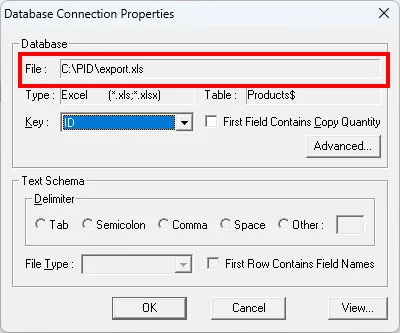
- The database will be identified in the File field of the Database Connection Properties dialogue box as shown in the image to the right
If you are struggling (and are a customer of Positive ID Labelling), simply call 01332 864895 and ask for support.

I had an amazing experience working with Positive ID Labelling, especially Natalie. The labels were absolutely brilliant quality and exceeded my expectations. Natalie was fantastic throughout the whole process. Communication was amazing from start to finish. She was so helpful, guided me through everything, and made the whole experience stress free and enjoyable. She was also genuinely funny and a pleasure to work with, which made everything even better. I’ll definitely be working with Natalie again on future projects and would highly recommend Positive ID Labelling to anyone looking for high-quality labels and excellent customer service.

Fantastic label printing service. Labels to a very high specification. Helen was great at sorting out our requirements, quotes, and order.

We’ve had a great experience working with this supplier, especially with Natalie - she is always very responsive, professional, and friendly. The pricing is highly competitive and the sales service has been excellent from start to finish.If I could offer one suggestion, it would be to improve the account and invoice management process. It would be really helpful if there were a system for clients to easily track their past orders and invoices in one place.Overall, very pleased with the service and look forward to continuing our collaboration.

Ive used Positive ID Labelling Ltd for all our egg box labels for many years now. Natalie is always above and beyond helpful and the service is exceptionally fast and efficient.
